Koldwater Training Software
Training for the Electrical and Automation Controls Industry
Koldwater
Training
Software

Koldwater Training Software
Training for the Electrical and Automation Controls Industry
Training
Software
Updates for:
You are up to date if your version numbers match these ...
Note for EXE downloads: After downloading software from the internet, right-click the file, select properties, and unblock before running the installation file.
Click to See Pictorial. (Or read How to Unblock Downloaded Files.)
Software Title
The FPTrainer (Hydraulics Training)
The MCTrainer (Motor Controls Training)
The VFDTrainer (VFD Training)
The PLCTrainer (PLC Training)
The CLXTrainer (PAC Training)
The TSTrainer (Troubleshooting Training)
The ViewTrainer (HMI Training)
The DeviceNetTrainer (Networking PLCs Training)
The Contructor (Electrical Drawing/Simulator)
Version Number
5.4
5.09
2.32
4.32
4.32
5.4
4.32
3.32
16
 Maybe you would like to try one of our Discounted Bundles next.
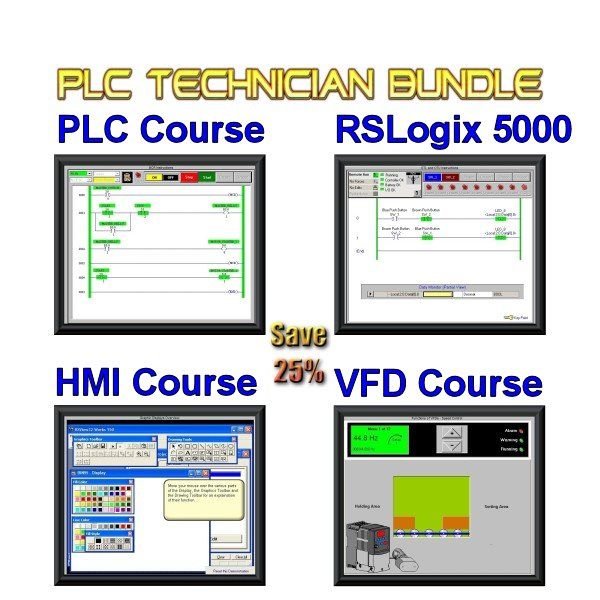
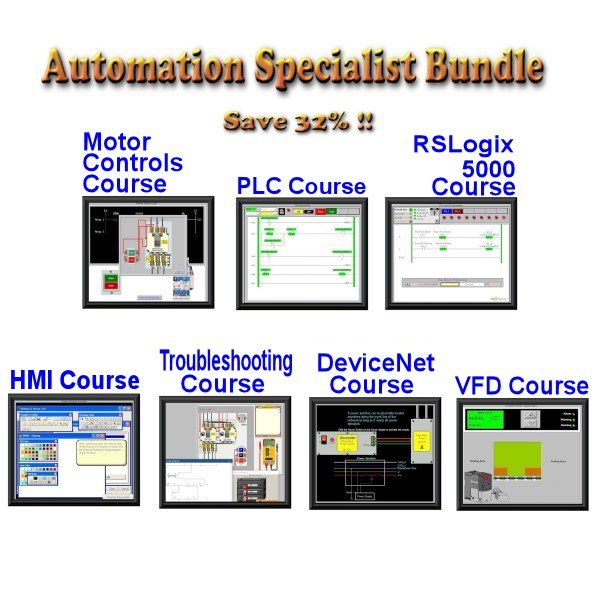
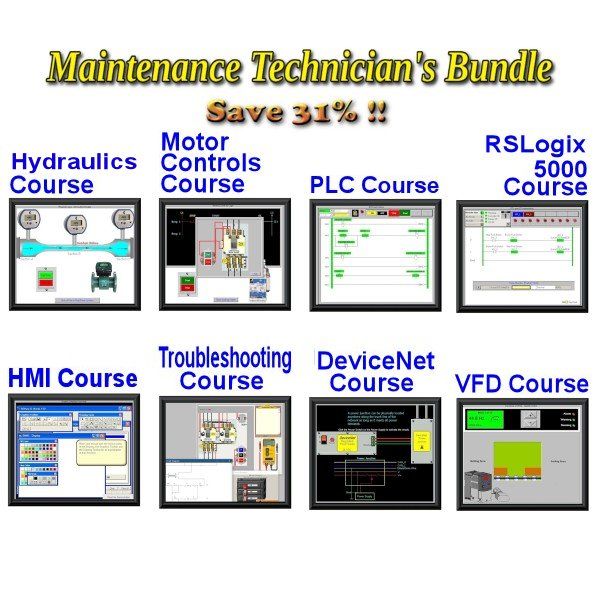
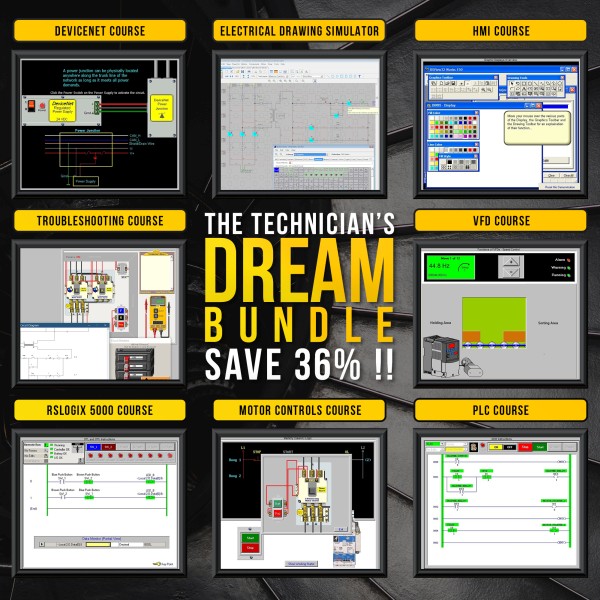
Note: If you have already purchased a single course title in the bundle you want to buy, we will refund you for that single course after your purchase.
We are still very active in the custom development and teaching fields. The best means of contact is via email or contact form.
All Koldwater technical training software is compatible with all Windows operating systems (Win 11 to XP) and prints a Certificate of completion. If there are issues, try running in Windows compatibility mode.
Student License: A single person may take and learn from the course, which never expires. We offer student prices (under $200 for a single course) to any individual, even if they are not in school. We have kept the pricing the same for over 20 years. (Note: Purchase multiple courses in course bundles to save even more!)
Site License: Unlimited students/employees at one physical location, a perpetual license that never expires, and no annual fees. For the price of ten students, you can have unlimited students at a licensed facility.
Enterprise License: Unlimited Site Licenses for a school or company. For the price of five Site Licenses, you can have unlimited physical locations anywhere in the States or even the world!
Flexibility: Employees and students can install courses on their home computers for distance learning with the Site and Enterprise Licenses. With all licenses, if you decide to upgrade the license type, we will deduct the cost of the previous licenses purchased from the price of the new license we quote. If you would like a quote for either of the unlimited student licenses to generate a purchase order, please use the Request a Training Quote Form on our parent company's website. Purchasing licenses for multiple course bundles results in additional discounts, indicated on the course bundles description page.
With the Site License, you can install it on your LAN for a licensed facility, but not a WAN.
With the Enterprise License, you can also install on your LAN and WAN for a licensed company or school. Additionally, with the Enterprise License, you can request SCORM examples for courses that have SCORM versions available. The Enterprise License gives maximum flexibility to use training material any way you see fit, short of reselling it. So, if your instructor wants to grab resources from the installed copy to use in their custom course, that is also allowed.
Please feel free to contact us with your questions. Please email us about Special Technical School & Community College Discounts and for instructions on purchasing by Purchase Order. Colleges and corporations worldwide have experienced great savings year after year by incorporating our industrial technical training software bundles into their curriculum at a fraction of the cost everyone else charges institutions for training software.


